
Scan a QR Code from an Image or Screenshot on Any Device

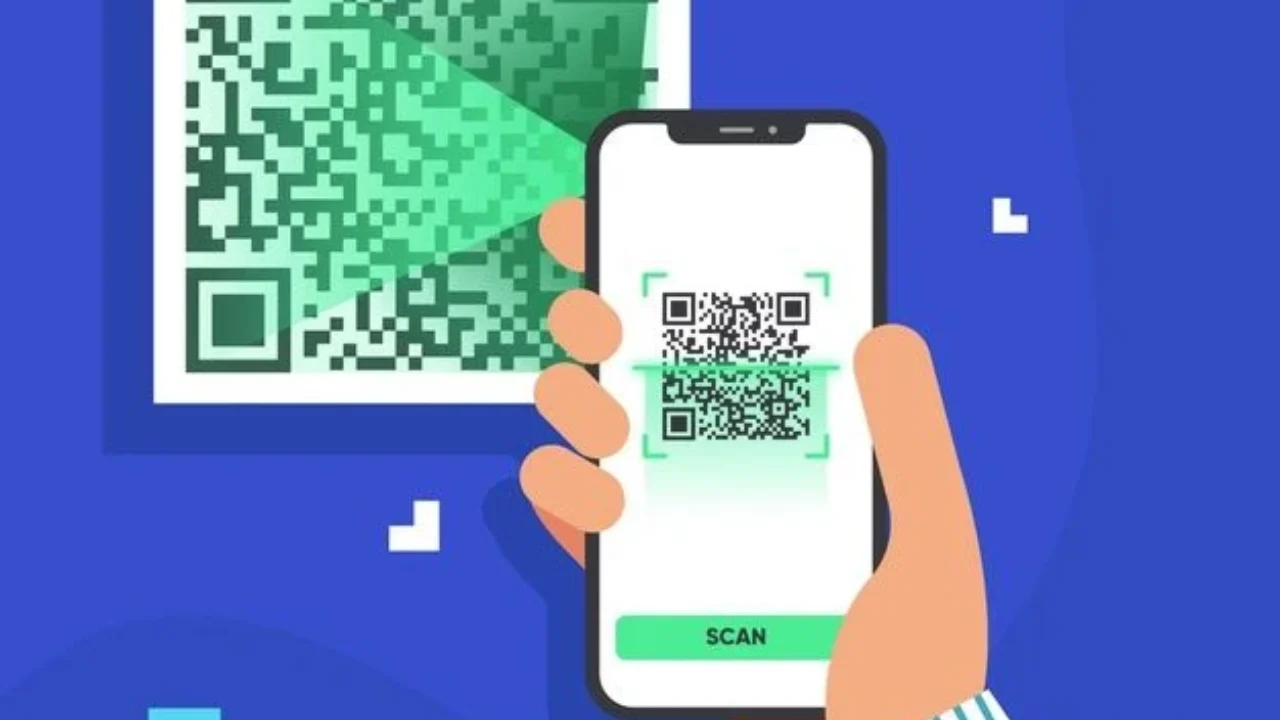
You took a screenshot of a QR code because you could not scan it in the moment. Now you are staring at that image in your gallery wondering what to do next. The camera cannot scan a code that already lives inside your phone. The usual method fails. Frustration builds quickly when you need access to a payment link, event ticket, WiFi login, or verification page.
This situation happens more often than people expect. QR codes appear inside social media posts, emails, PDFs, and even on the same device screen you are using. You cannot point your camera at your own display. That limitation pushes users to search for a clear and secure solution.
Scanning a QR code from a screenshot is not complicated once you understand how image recognition works. Modern operating systems use built in machine learning tools such as Google Lens and Apple’s Live Text to detect embedded QR data. Desktop systems also support decoding through native apps or trusted web tools. The process varies by device, yet the logic remains the same. The software reads the pixel pattern inside the image and translates it into actionable data.
Understanding How QR Code Detection Works
A QR code is a two dimensional barcode designed to store encoded information. It may contain a URL, contact card, payment instruction, authentication token, or plain text. When scanned, the device camera interprets the square pattern and converts it into readable data. This decoding relies on image recognition and pattern analysis.
When you scan directly through a camera app, the system processes the live frame in real time. With a screenshot, the detection happens after the image has already been captured. The software analyzes static pixels rather than a live feed. This requires an image recognition engine such as Google Lens or Apple Vision framework.
Many users assume scanning only works through the camera. That assumption is outdated. Most modern smartphones can detect QR codes stored in the photo gallery. The operating system scans for known visual markers within the image file. Once identified, it overlays an interactive link or prompt. This happens automatically in many cases without extra apps.
Security also plays a role. When decoding from a screenshot, the device often previews the destination before opening it. This reduces the risk of malicious redirects. Understanding this background makes the process feel less mysterious and far more controlled.
How to Scan a QR Code from a Screenshot on iPhone
Apple devices integrate QR detection directly into iOS through the Photos app and Live Text technology. If you have saved a screenshot of a QR code, the decoding process usually requires only a few taps.
Open the Photos app and select the screenshot. If the QR code is clear and not cropped too tightly, a small link icon may appear in the lower corner. Tapping that icon reveals the embedded data. It may display a website link, contact details, or WiFi credentials. You can preview the destination before proceeding.
If the automatic link does not appear, press and hold on the QR code within the image. iOS uses on device intelligence to recognize structured data. A contextual menu should appear with options related to the encoded content. This feature works on devices running recent versions of iOS such as those found on the iPhone 15 and newer models.
Some users rely on the Google app for additional flexibility. Installing Google and using Google Lens inside the app provides another recognition layer. This can help if the built in detection fails due to image quality or contrast issues.
How to Scan a QR Code from a Screenshot on Android
Android devices often provide even broader integration through Google Lens. Many phones have Lens built into the camera and gallery applications. If you captured a QR code screenshot, open your Photos app and select the image.
Tap the Google Lens icon. The system analyzes the image and highlights any recognized QR pattern. Within seconds, the decoded information appears as a clickable option. This works smoothly on devices such as the Samsung Galaxy S24 and other modern Android phones.
Some Android versions allow direct long press recognition inside Google Photos. The interface may automatically suggest opening a detected link. If not, manually activating Lens solves the issue. The decoding is processed either on device or through secure cloud recognition depending on the system configuration.
If your phone lacks built in Lens, download the Google Lens app from the Play Store. Once installed, upload or select the screenshot. The recognition engine scans the image and extracts embedded data. This method is reliable for URLs, app download links, payment requests, and digital passes.
Scanning a QR Code Screenshot on Windows and Mac
Desktop users face a different challenge. Laptops and desktop computers lack native QR scanning from images unless additional tools are used. Still, the process remains straightforward with the right software.
On a Mac, you can open the screenshot in the Photos app if it is synced via iCloud. Recent versions of macOS integrate Live Text similar to iOS. Highlighting the QR code may trigger detection. Safari also supports certain QR interactions when images are previewed.
Windows users often rely on web based QR code readers. Upload the screenshot to a reputable QR decoding website. The site scans the image and reveals the embedded data. Always verify the website credibility before uploading sensitive screenshots. If the QR code contains private data such as login tokens, avoid unknown third party platforms.
Some desktop apps specialize in QR scanning and decoding. These programs run locally which reduces privacy concerns. The decoding process remains identical at the technical level. The software reads pixel patterns and converts them into structured output.
Common Issues When Scanning from a Screenshot
Recognition fails when the screenshot is blurry or partially cropped. A QR code requires clear alignment and intact corner markers. If the image cuts off one corner, decoding may fail entirely.
Low contrast is another common problem. Dark mode screenshots sometimes reduce clarity. Adjusting brightness or cropping the image to isolate the QR code often improves detection accuracy. Enlarging the image before scanning can also help the recognition engine identify the pattern.
Screenshots captured from social media platforms may compress the image. Compression reduces sharpness and pixel clarity. If possible, request the original QR code image rather than a compressed version. Higher resolution improves detection success.
Security Considerations Before Opening a Scanned Link
QR codes can hide malicious URLs. Cybercriminals exploit the fact that users cannot see the destination until after scanning. When decoding from a screenshot, always preview the link before opening it.
Check for unusual domain names or misspellings. Secure links often begin with HTTPS and show a recognizable brand domain. Avoid entering sensitive credentials unless the source is trusted.
Corporate environments treat QR codes as potential attack vectors. Security teams recommend verifying the sender if the code arrives through email or messaging platforms. Awareness reduces risk and prevents phishing incidents.
QR Code Screenshot Scanning Methods Comparison
The table below outlines common platforms and their scanning capabilities from screenshots.
| Device or Platform | Built In Detection | Requires App | Security Preview | Offline Capability |
|---|---|---|---|---|
| iPhone with recent iOS | Yes via Photos | No | Yes | Yes |
| Android with Google Lens | Yes via Gallery | No | Yes | Partial |
| Windows PC | No | Yes | Depends on tool | Depends on tool |
| Mac with modern macOS | Partial | Sometimes | Yes | Yes |
| Third party web tools | No | Browser based | Limited | No |
Each method has strengths and limitations. Mobile devices offer the most seamless experience due to deep operating system integration. Desktop solutions often rely on external tools.
Advanced Use Cases Beyond Basic URL Scanning
QR codes often store more than simple web links. Payment gateways use them for instant transactions. Messaging apps encode contact details. Event platforms generate QR based tickets for entry verification.
When scanning from a screenshot, payment QR codes require caution. Ensure the amount and recipient name match expectations. Banking apps frequently provide their own scanning modules that can import images directly. Using official banking apps reduces fraud risk.
Developers also use QR codes for two factor authentication. These codes link to authenticator apps. When capturing such a code in a screenshot, treat the image as sensitive data. Anyone with access to that screenshot could potentially replicate the authentication setup.
Why Screenshot Scanning Matters in Remote Work and Digital Life
Remote communication relies heavily on shared screens and digital files. Teams exchange QR codes inside presentations and chat threads. Printing and rescanning is inefficient. Screenshot decoding saves time and maintains workflow continuity.
Online shopping also integrates QR codes for product verification and payment redirection. Consumers frequently receive codes through email. Being able to decode from a screenshot keeps the process seamless.
Educational platforms distribute QR codes for resource access. Students often capture them for later use. Understanding how to decode these images ensures smooth access without needing secondary devices.
FAQs
Can I scan a QR code from a screenshot without installing any app on iPhone?
Yes. Most recent iOS versions detect QR codes directly inside the Photos app. Opening the screenshot usually triggers a link prompt automatically.
Why does my Android phone not detect the QR code in my screenshot?
The image may be low quality or cropped. Activating Google Lens manually often resolves the issue if automatic detection does not appear.
Is it safe to upload a QR code screenshot to an online scanner?
It depends on the content of the QR code and the trust level of the website. Avoid uploading screenshots that contain private login or payment data.
Can I scan a QR code from a screenshot on my laptop without internet?
Only if you use a locally installed QR decoding application. Web based scanners require an internet connection.
Why is the QR code link not opening after scanning from a screenshot?
Some codes expire or link to time sensitive sessions. Authentication and payment codes often stop working after a short period.
Does cropping the screenshot help improve scanning accuracy?
Yes. Cropping to isolate the QR code can improve recognition by removing visual noise from the image.
A Smarter Approach to Digital QR Access
Scanning a QR code from a screenshot removes the need for a second device and keeps digital interactions fluid. The technology behind it relies on mature image recognition systems embedded into modern operating systems. Mobile platforms provide the smoothest experience while desktop solutions offer flexibility with extra tools.
Understanding how decoding works strengthens digital awareness. It reduces frustration and supports secure browsing habits. With clear images and trusted software, QR screenshot scanning becomes a seamless part of everyday digital life.


