
Top 12 Advanced Image Search Techniques to Find Anything

Billions (billions) of images are shared around the world every day. It is human nature that we process images faster than words. That is why today 1.3 million people are searching for “image search techniques.” People are tired of the old dark ages; if you want to find “advanced” hacks, then it is the turn of the Internet to easily find anything (anything) in the visual library.
In this guide, we will not talk about “Google Search,” but rather about advanced AI models and hidden techniques that will make you a “visual detective.” Whether you are a researcher, a shopping enthusiast, or a surfer looking to find the original source of an old photo, this evolution is here to make your life easier.
Master Cheat Sheet: 12 Advanced Image Search Techniques
| # | Technique Name | Best Tool / Shortcut | Best For (Purpose) |
| 1 | Reverse Image Search | TinEye / Google Images | Finding the original source or owner. |
| 2 | Google Lens | Google App (Camera Icon) | Identifying real-world plants, animals, & text. |
| 3 | Advanced Filtering | Tools > Size / Color | Finding high-res or transparent (PNG) files. |
| 4 | Source & Metadata | Jeffrey's Metadata Viewer | Checking date, time, and GPS of a photo. |
| 5 | Usage Rights | Creative Commons / Unsplash | Finding legal images to avoid copyright fines. |
| 6 | Facial Recognition | Yandex Images | Best for finding people and profile matches. |
| 7 | HD/4K Alternatives | imagesize:WIDTHxHEIGHT | Finding crystal-clear wallpapers or prints. |
| 8 | E-commerce Search | Pinterest Lens / Amazon | Finding where to buy clothes or furniture. |
| 9 | Device Optimization | Right-click (Desktop) / Lens (Mobile) | Speeding up your search based on your device. |
| 10 | Boolean Operators | " site: - OR | Skipping the “junk” results with math symbols. |
| 11 | OSINT Investigation | Forensically / InVID | Verifying if a photo is fake or Photoshopped. |
| 12 | Regional Search | VPN / Region Settings | Seeing international trends (e.g., USA vs UK). |
Why We Fail to Find the Right Image
Despite the incredible evolution of AI and search engines, finding the exact image you need can still feel like finding a needle in a haystack. Most users start with a simple search but end up frustrated after scrolling through pages of irrelevant results.
Understanding these “pain points” is the first step toward mastering advanced search techniques. Here are the most common reasons why traditional image searches fail:
1. The “Irrelevant Results” Trap
Often, you type a keyword and the search engine shows you thousands of images—but none of them are what you actually want. This happens because search engines sometimes focus too much on the “text” around an image rather than the “content” of the image itself. For example, searching for a “blue vintage chair” might show you blue walls or modern chairs just because those words appeared on the same webpage.
2. Low Resolution and Poor Quality
There is nothing more frustrating than finding the perfect image, only to realize it is tiny, blurry, or pixelated. Many users struggle to find high-definition (HD) or 4K versions of a photo they’ve seen online. Standard searches often hide the high-quality versions behind layers of low-quality thumbnails.
3. The Mystery of the Original Source
In the age of social media, images are re-shared millions of times. This makes it almost impossible to find the original creator or the official website where the photo first appeared. Whether you are a journalist fact-checking a news story or a designer looking for a license, “source loss” is a major headache.
4. Copyright and Legal Fears
Many users are afraid to download and use images because they don’t know the legal status. Is this photo free to use? Do I need to pay for it? Will I get a legal notice? Standard image searches don’t always make it clear which images are “Royalty-Free” and which are protected by strict copyright laws.
5. Identifying the “Unknown”
Sometimes you have a photo of a beautiful building, a strange insect, or a cool gadget, but you don’t know its name. If you don’t know the name, you can’t type it into a search bar. This “identification gap” is a huge barrier for users who only have visual information but no words to describe it.
6. The Rise of AI-Generated Content
With the boom of AI tools like Midjourney and DALL-E, the internet is now flooded with images that look real but are actually fake. Users now face a new pain point: distinguishing reality from AI. Traditional search methods often fail to flag these fake images, leading to the spread of misinformation.
Technique 1: Mastering Reverse Image Search (Google & Beyond)
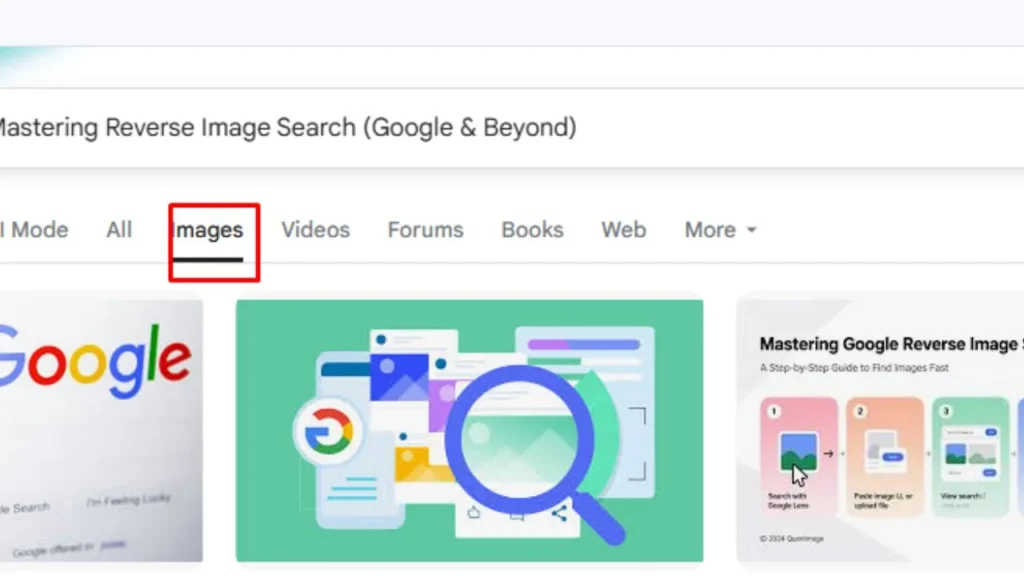
Reverse image search is a game-changer. Instead of trying to describe a photo with words, you simply show the photo to the search engine, and it finds where that image exists on the internet.
How to Use Google Reverse Search (Desktop)
Searching from a computer is the easiest way to find information. Here is how you do it:
- Go to Google Images: Open your browser and go to
images.google.com. - Click the Camera Icon: You will see a small camera icon in the search bar. This is the “Search by Image” button.
- Upload or Paste: You can either upload a saved photo from your computer or paste the link (URL) of an image you found online.
- Analyze Results: Google will show you the “Visual Matches” and the websites that are using that exact image.
The Mobile Trick: Using Your Phone
Many people struggle to reverse search on a smartphone because the camera icon doesn’t always appear in the mobile browser. Here are two ways to fix that:
- The Google App: Open the official Google app and tap the colorful camera icon (Google Lens) in the search bar.
- The “Desktop Site” Hack: If you are using Chrome on your phone, tap the three dots in the corner and select “Request Desktop Site.” This will make the camera icon appear just like it does on a computer.
Going “Beyond Google”: Specialized Tools
While Google is great, it isn’t the only tool. Sometimes other search engines find things that Google misses:
- TinEye: This is a specialist “Image Search Engine.” It doesn’t look at the keywords; it only looks at the pixels. It is the best tool for finding the original creator of a photo or seeing how a photo has been edited over time.
- Bing Visual Search: Bing is often better than Google at identifying specific products or furniture pieces. If you see a lamp or a dress in a photo and want to buy it, Bing is usually more helpful.
Why Should You Use This Technique?
- Find Higher Quality: If you have a small, blurry photo, a reverse search can help you find the original High-Definition (HD) version.
- Verify Facts: If you see a shocking news photo on social media, reverse search it. You might find out the photo is actually 10 years old and has nothing to do with today’s news.
- Identify Objects: If you have a photo of a plant or an animal but don’t know the name, this search will tell you exactly what it is.
Pro Tip: Crop Before You Search
If your image has many things in it (like a person wearing a specific watch), use a “Crop” tool to focus only on the watch before searching. This tells the AI exactly what you are looking for and gives you much better results.
Technique 2: Using Google Lens for Real-World Object Identification
If you see something interesting in the real world but don’t know what it is, Google Lens is your best friend. In 2026, Google Lens has become much more than just a camera tool; it is now a powerful AI assistant that lives inside your phone. It allows you to “search what you see” in real-time.
What Can Google Lens Identify?
You can point your camera at almost anything, and Google Lens will tell you about it. Here are the most popular uses:
- Plants and Animals: Ever seen a beautiful flower or a unique dog breed in the park? Just point your camera, and Lens will give you the name and details.
- Landmarks and Buildings: If you are traveling and see a famous statue or a historic building, Lens can provide its history, opening hours, and reviews.
- Products and Clothes: See a cool pair of shoes or a nice chair? Lens will find the exact product online, show you the price, and tell you where to buy it.
- Menus and Signs: Point your camera at a restaurant menu, and it will highlight the most popular dishes based on other people’s reviews.
How to Use Google Lens (Step-by-Step)
Using Google Lens is very simple. You don’t even need to take a photo most of the time!
- Open the Google App: On your Android or iPhone, open the Google app.
- Tap the Lens Icon: Look for the colorful camera icon in the search bar and tap it.
- Point and Tap: Point your phone at the object. You will see small dots appear as the AI analyzes the item. Tap on the object you want to identify.
- Read the Results: A panel will slide up from the bottom with all the information you need.
New Features in 2026
Google has recently updated Lens to make it even smarter. Here is what’s new:
- Video Search: You can now hold down the shutter button to record a short video of a moving object (like a bird flying). Google will analyze the movement to give you a more accurate result.
- Voice Follow-up: After you scan an image, you can ask a question out loud. For example, you can scan a plant and ask, “How often should I water this?” The AI will answer you directly.
- AI Summaries: Instead of just showing you links, Google now provides a quick “AI Overview” at the top that summarizes everything you need to know about the object.
Why It Is Beneficial for You
Google Lens saves you from the struggle of typing long descriptions. Instead of typing “red flower with five petals and yellow center,” you just show the flower to your phone. It is fast, accurate, and completely free. It bridges the gap between the physical world and digital information.
Technique 3: Advanced Filtering (Size, Color, and Type)
To start using these filters, go to Google Images, type in your keyword, and then click on the “Tools” button located just below the search bar. A new row of options will appear: Size, Color, Type, Time, and Usage Rights.
1. Filtering by Size (Quality Control)
This is the most important filter if you want high-quality images for a presentation, a website, or a wallpaper.
- Large: This hides all the small, blurry, and low-quality photos. It only shows you images that are clear and high-resolution (usually 1000 pixels or more).
- Medium: Good for quick blog posts or social media where you don’t need huge files.
- Icon: This is a “secret” filter for developers and designers. It only shows you tiny square images (like 32×32 or 64×64 pixels) which are perfect for favicons or app buttons.
- The “Exact Size” Hack: In the advanced settings, you can even type in exact dimensions, like “1920 x 1080,” to find a photo that fits your screen perfectly.
2. Filtering by Color (The Designer’s Secret)
Have you ever needed a photo of a car, but it must be red? Or perhaps you need a logo but with no background?
- Color Picker: You can select a specific color (like Blue, Green, or Yellow), and Google will only show images where that color is dominant.
- Transparent (Very Important): This is a lifesaver! If you select “Transparent,” Google will only show you PNG files with no background. This means you can place the image on any color or website without that annoying white box around it.
- Black and White: Great for finding artistic photos or classic-style images without having to use Photoshop later.
3. Filtering by Type (Finding the Style)
Not every search is for a real-life photograph. Sometimes you need a drawing or an animation.
- Clipart: These are simple, graphic illustrations. They are great for school projects or simple presentations.
- Line Drawing: This filter shows you “coloring-book” style images. It only shows the outlines of objects, which is perfect if you want to print something for kids to color or for a simple logo design.
- GIF: If you are looking for moving images or memes, this is the filter you need. It hides all still photos and only shows you animations.
4. Filtering by Time (Freshness)
Sometimes you need the most recent image of an event or a product.
- By using the Time filter, you can choose to see images uploaded in the “Past 24 hours” or the “Past week.” * This is very helpful when searching for news events, recent tech gadgets, or fashion trends that are happening right now.
Why This Technique is Beneficial for You
Using advanced filters saves you from “scrolling fatigue.” Instead of looking at 500 wrong images, you tell Google exactly what you want. For example, instead of searching for “Cat,” you can search for a “Large, Transparent, Orange Cat” that was uploaded in the “Last 24 hours.” This level of detail ensures that the image you find is exactly what you need for your project, saving you time on editing and searching.
Technique 4: Finding the Original Source and Metadata
Have you ever wondered who actually took a specific photo? Or maybe you want to know if a “breaking news” photo is real or just an old picture from five years ago? This technique will help you find the truth.
1. How to Trace an Image Back to its Source
When an image is shared over and over again, it loses quality and its original story. To find the very first version of a photo, you can use these steps:
- Use the “Time” Filter on Google: After you do a reverse image search, use the “Tools” menu to look for the oldest version. Usually, the oldest result is the original source.
- TinEye’s “Oldest” Feature: TinEye is a special search engine just for images. When you upload a photo there, you can sort the results by “Oldest.” This will show you the first time that specific image appeared on the internet.
- Check the Domain: Often, the original source is a professional photography site (like Getty Images or Unsplash) or a news organization. If you see a photo on a personal blog, keep digging until you find a “high-authority” website.
2. What is Metadata (The Hidden Information)?
Every time a digital camera or a smartphone takes a picture, it saves a lot of hidden information inside the file. This is called EXIF data (Exchangeable Image File Format).
Think of Metadata as a “Digital Receipt.” It can tell you:
- The Date and Time: Exactly when the photo was taken.
- The Camera Details: Was it an iPhone, a Samsung, or a professional DSLR?
- GPS Location: If the photographer didn’t turn off their settings, the metadata might show the exact latitude and longitude of where the photo was shot.
- Settings: Information like ISO, shutter speed, and whether the flash was used.
3. Tools to Read Metadata
You can’t see this information just by looking at the photo. You need a “Metadata Viewer.”
- Online EXIF Viewers: There are free websites like Jeffrey’s Image Metadata Viewer or jimpl.com. You just upload the image, and it shows you all the hidden “DNA.”
- On Windows: Right-click the image file, go to Properties, and click the Details tab.
- On Mac: Open the image in “Preview,” go to Tools, and click Show Inspector.
Why This Technique is Beneficial for You
Knowing how to find the source and metadata provides three huge benefits:
- Stop Fake News: If someone posts a photo of a “storm” happening today, you can check the metadata. If the metadata says the photo was taken in 2018, you know it’s a lie.
- Give Proper Credit: If you are a blogger or a student, you must give credit to the right person. Finding the original source ensures you don’t accidentally credit a “re-poster.”
- Find the Original Photographer: If you love a photo and want to hire the person who took it, or if you want to buy a high-resolution version for a poster, this is the only way to find them.
A Small Warning
Keep in mind that many social media platforms (like Facebook, Instagram, and WhatsApp) remove metadata when you upload a photo to protect privacy. If you want to see the metadata, you usually need to find the version of the photo on the photographer’s own website or a professional gallery.
Technique 5: Searching by Usage Rights (Legal Images)
Google has a built-in feature that helps you find images that are “safe to use.” This filter tells the search engine to only show images that the owner has given permission for others to use.
How to Find the Usage Rights Filter
To find legal images, follow these simple steps:
- Perform a Search: Type your keyword (e.g., “mountain landscape”) into Google Images.
- Click “Tools”: This button is under the search bar.
- Click “Usage Rights”: A small menu will drop down with two main options.
Understanding the Two Main Options
In the past, Google had many confusing options. Now, they have simplified it into two categories:
1. Creative Commons Licenses
These images are usually free to use. “Creative Commons” means the photographer or artist has shared their work with the public.
- What you can do: You can usually use these for your blog, school projects, or social media.
- The Catch: Sometimes you are required to give “Credit” (mention the author’s name) or you might not be allowed to change the photo. Always click on the image to read the specific rules.
2. Commercial & Other Licenses
These are images that are usually not free. They often belong to professional photo agencies like Getty Images or Shutterstock.
- What you can do: You can use them, but you usually have to pay for a license first.
- The Catch: These photos often have a “Watermark” (a faint logo or text) over them. If you see a watermark, do not use the image until you pay for it.
Best Places for “Always Legal” Images
Sometimes Google’s filter isn’t 100% perfect. To be extra safe, many pros use specialized websites that only host free-to-use images. You should mention these in your search or visit them directly:
- Unsplash: Beautiful, high-resolution photos that are free for almost any use.
- Pexels: Great for modern and trendy photos and videos.
- Pixabay: Excellent for finding illustrations, vectors, and stock photos without spending a penny.
Why This Technique is Beneficial for You
Why should you spend time checking usage rights? Here are the three main reasons:
- Avoid Legal Trouble: Companies use “bots” to crawl the internet and find people using their images illegally. If they find their photo on your site without a license, they can send you a bill for thousands of dollars. Using the right filter prevents this.
- Protect Your Website/Channel: If you use copyrighted images on YouTube or a blog, Google might penalize your site or take down your video. Using legal images keeps your “SEO ranking” safe.
- Support Artists: By checking the license, you are respecting the hard work of the person who took the photo. If they ask for credit, giving it to them helps their career, and it makes you look like a more professional and honest creator.
Pro Tip: Keep a Record
If you find a “Creative Commons” image and use it on your site, it is a good idea to take a screenshot of the license page or save the link. Sometimes photographers change their minds and change the license later. If you have a record that it was free when you downloaded it, you are protected.
While Google is the most popular search engine, it is not always the best one for every task. Because of strict privacy laws, Google often limits its ability to recognize faces in photos. This is where Yandex and Bing come in. In 2026, these two platforms have become the “secret weapons” for people who need to find specific people or identify faces across the internet.
Technique 6: Using Yandex and Bing for Better Facial Recognition
If you have a photo of a person and you want to find more pictures of them, or perhaps find their social media profile, Google might not give you the best results. However, Yandex (from Russia) and Bing (from Microsoft) use different algorithms that are much more powerful for facial matching.
1. Yandex: The King of Facial Recognition
Many experts consider Yandex to be the most accurate image search engine in the world for finding people.
- How it works: Yandex’s AI is incredibly good at identifying facial features like the shape of the nose, the distance between the eyes, and the jawline. Even if the person is wearing sunglasses or the photo is taken from a side angle, Yandex can often find a match.
- Why it’s better than Google: Google often hides results that show a person’s face to protect privacy. Yandex is much more “open,” meaning it will show you almost every matching face it finds on the web, including results from social media sites like LinkedIn or VK.
How to use Yandex:
- Go to
yandex.com/images. - Click the Camera Icon in the search bar.
- Upload your photo or paste the URL.
- Look at the “Similar Images” section—it will show you photos of the same person even in different clothes or settings.
2. Bing Visual Search: Best for Style and Objects
Bing (by Microsoft) has improved massively by 2026. While Yandex is the king of faces, Bing is the king of “Context.”
- The “Crop” Feature: Bing allows you to select a specific part of an image after you upload it. If you have a photo of a group of people, you can draw a box around just one person’s face, and Bing will search only for that individual.
- Shopping Integration: If the person in the photo is wearing a specific watch or dress, Bing is excellent at identifying the person and the clothes they are wearing at the same time.
Why This Technique is Beneficial for You
Using multiple search engines gives you a “360-degree view” of the internet. Here is what you get out of it:
- Find “Lost” People: If you have an old photo of a distant relative or a childhood friend and want to see if they have a public profile today, Yandex is your best chance to find them.
- Verify Influencers/Profiles: If you are talking to someone online and suspect they are using a fake photo (catfishing), running their photo through Yandex will tell you if that photo actually belongs to a famous model or someone else.
- Find Better Quality Versions: Sometimes a person’s photo on one site is small and blurry. Searching on Bing or Yandex might lead you to a professional portfolio or a news article where that same photo is available in high resolution.
- Discover Social Context: Yandex is particularly good at finding people on professional networks. This is very helpful for journalists or researchers who need to verify who a person is and what they do.
A Quick Privacy Tip
While these tools are powerful, always remember to use them ethically. Using facial recognition to find public figures, verify facts, or find lost friends is great. However, always respect people’s privacy and avoid using these techniques for anything harmful.
Finding a photo you love is great, but finding out that it is small, blurry, or pixelated is a major disappointment. Whether you want to use an image as a desktop wallpaper, print it for a poster, or use it on a professional website, you need high resolution (HD or 4K).
Technique 7 is all about moving past the tiny “thumbnails” and finding the highest quality version of any image available on the internet.
Technique 4: Finding High-Resolution Alternatives (HD/4K)
In 2026, screen quality is better than ever. If you use a low-quality image on a 4K monitor or a modern smartphone, it will look bad. Here is how you can find the “Crystal Clear” version of almost any photo.
1. Using the “More Sizes” Feature
When you perform a reverse image search on Google, it doesn’t just show you where the image is; it also looks for different versions of that same file.
- How to do it: After you upload your image to Google Images, look for a link that says “Find other sizes of this image.” * What to look for: Google will often give you options like “Small,” “Medium,” and “Large.” Always click on “All sizes” to see every single version Google has found. Usually, the first few results will be the highest resolution (HD).
2. Searching for Specific Resolutions
If you know exactly how big the image needs to be, you can tell Google to only show you those specific dimensions.
- The “imagesize” Hack: In the search bar, type your keyword followed by
imagesize:[width]x[height]. - Example: If you want a 4K wallpaper of a forest, type:
forest wallpaper imagesize:3840x2160. - This forces the search engine to skip everything else and only show you photos that perfectly fit a 4K screen.
3. Using Specialized High-Res Search Engines
Standard search engines try to show everything. However, some websites are built specifically for high-quality photography. If you can’t find an HD version on Google, try searching these directly:
- Wallhaven.cc: This is one of the best sites for high-resolution wallpapers. You can filter by 4K, 8K, and even specific aspect ratios.
- Unsplash & Pexels: As mentioned before, these sites only host high-quality images. If the image you are looking for is a “stock photo,” you will almost certainly find the HD version here.
4. The 2026 AI Upscaling Trick
Sometimes, a high-resolution version of a photo simply does not exist. Maybe it is an old family photo or a rare historical image. In 2026, we have a new solution: AI Upscaling.
- What is it? AI tools like Gigapixel AI or free online tools like Upscale.media use Artificial Intelligence to “guess” what the missing pixels should look like.
- The Result: You can take a small, blurry photo and increase its size by 2x or 4x, making it look sharp and clear as if it were taken with a modern camera.
Why This Technique is Beneficial for You
Why should you care about HD or 4K? Here is why it matters:
- Professional Look: If you are using images for a business or a blog, high-resolution photos make you look trustworthy. Blurry images make a website look “cheap” or “unprofessional.”
- Great for Printing: If you try to print a low-resolution photo on a t-shirt or a canvas, it will look like a mess of squares. Using this technique ensures your prints look sharp and beautiful.
- Perfect Wallpapers: There is nothing better than a clean, 4K wallpaper for your laptop or phone. This technique helps you find images that make your devices look amazing.
- Better Details: In research or investigation, a high-res photo allows you to zoom in and see small details—like text on a sign or a person’s face in the background—that you would miss in a low-quality photo.
Pro Tip: Check the File Size
Before you download an image, hover your mouse over it. A good HD image should usually be larger than 1920×1080. If the numbers are small (like 600×400), keep searching for a better version!
Have you ever seen someone walking down the street wearing a jacket you loved, but you were too shy to ask where they bought it? Or perhaps you saw a beautiful lamp in a magazine but didn’t know the brand name? In the past, you would try to type “green jacket with silver buttons” into a search bar, only to find thousands of results that didn’t match.
Technique 8 is all about using visual search to become a master shopper. In 2026, your camera is now the ultimate shopping assistant.
Technique 8: Visual Search for E-commerce & Shopping
Visual search has completely changed how we buy things online. Instead of using words, you use “inspiration.” Whether it’s a screenshot from Instagram or a photo of a real-world object, here is how you can find exactly what you want to buy.
1. The Amazon “StyleSnap” Feature
Amazon, the world’s biggest online store, has a built-in AI tool called StyleSnap. It is specifically designed for fashion and home decor.
- How to use it: Open the Amazon app and tap the camera icon in the search bar. Select the “StyleSnap” option.
- The Magic: You upload a photo of an outfit, and Amazon’s AI breaks it down. It will identify the shoes, the pants, and the shirt separately.
- Results: It will show you the exact items if they are on Amazon, or “Lookalikes” that match the style, color, and price range. This is perfect for finding expensive designer looks at a cheaper price.
2. Pinterest Lens: The Trend Finder
Pinterest is not just for looking at pretty pictures; it is a massive visual search engine. Pinterest Lens is arguably the best tool for home renovation and fashion styling.
- The “Zoom” Hack: If you see a photo of a fully decorated living room on Pinterest, you can tap the “Lens” icon on that photo. You can then draw a box around a specific item, like a rug or a coffee table.
- Visual Harmony: Unlike Google, which looks for factual matches, Pinterest looks for “Vibe” matches. It will show you items that have the same aesthetic and style.
3. Shopping from Screenshots (Instagram & TikTok)
We spend hours scrolling through social media. If you see an influencer wearing something cool, don’t waste time asking “Link please?” in the comments.
- Step 1: Take a screenshot of the post.
- Step 2: Open the Google App and tap the Lens icon.
- Step 3: Select the screenshot from your gallery.
- Step 4: Google will show you “Shopping” results with direct links to buy that item from various stores.
4. Comparison Shopping in Seconds
One of the best ways to use visual search for shopping is to save money.
- If you are in a physical store and see a vacuum cleaner or a pair of headphones, scan the barcode or the product itself with Google Lens.
- Lens will instantly show you the price of that same item at other stores like Walmart, Target, or eBay. This ensures you never pay more than you have to.
Why This Technique is Beneficial for You
Why is visual shopping so popular in 2026? Here are the benefits:
- No More “Search Frustration”: You don’t need to know the technical names of things. You don’t need to know that a specific collar is called a “Mandarin collar.” The image tells the search engine everything.
- Discover New Brands: Visual search often introduces you to smaller, independent stores that sell the same style as big brands but for a better price.
- Build Your Style: Tools like Pinterest Lens help you find items that match what you already have. You can scan your favorite pair of shoes and find a bag that looks perfect with them.
- Instant Gratification: It shortens the path from “I like this” to “I bought this.” It saves you hours of manual research.
Pro Tip for Shoppers: Lighting is Key
If you are taking a photo of a real object to shop for it, make sure the lighting is bright. If the photo is too dark, the AI might mistake a dark navy blue dress for a black one. Also, try to take the photo against a plain background so the AI doesn’t get confused by other objects in the room.
Technique 9: Mobile vs. Desktop – Choosing the Best Way to Search
Searching for images feels different depending on whether you are sitting at a desk or waiting for a bus. While the internet is the same, the tools and shortcuts you use change based on the device in your hand. To find anything like a pro, you need to know which device is better for specific tasks.
1. Searching on Desktop: The Power of Precision
A computer is like a laboratory. It is the best place for deep research, high-quality downloads, and professional work.
- Right-Click Shortcut: This is the fastest way to search. On most browsers (like Chrome or Edge), you can simply right-click any image you see on a website and select “Search Image with Google.” You don’t even have to download the file!
- Drag and Drop: You can simply grab an image file from your computer folder and “drag” it directly into the Google Images search bar. It feels natural and saves time.
- Split Screen: On a desktop, you can have your search results open on one side and your project (like a Word doc or website) on the other. This makes it easier to compare different images side-by-side.
- Extensions: You can install browser extensions like “Search by Image” that allow you to search across Google, Bing, Yandex, and TinEye all at once with one click.
2. Searching on Mobile: The Power of the “Now”
Your smartphone is like a magic lens. It is designed for the real world and for things that happen “on the go.”
- Google Lens Integration: On mobile, the camera is the king. Most Android phones have Google Lens built directly into the camera app. On iPhone, it is inside the Google app. This is much faster for identifying things in front of you than using a laptop.
- Screenshots are Your Friends: On mobile, we see images in apps like Instagram or TikTok where you can’t “right-click.” The best technique here is to take a screenshot and then open that screenshot inside the Google Lens app to find the source.
- Voice Search: You can tap the microphone icon on your mobile search bar and say, “Find images of 2026 electric cars.” Mobile AI is much better at understanding spoken requests than desktop computers.
3. The Major Differences at a Glance
| Feature | Desktop (Laptop/PC) | Mobile (Phone/Tablet) |
| Speed | Fast for files already saved. | Fast for objects in the real world. |
| Control | High (Advanced filters, exact sizes). | Medium (Simplified filters). |
| Best For | Professional projects & HD downloads. | Shopping, identifying plants, & social media. |
| Navigation | Mouse and Keyboard (very precise). | Touch and Camera (very intuitive). |
Why This Technique is Beneficial for You
Knowing when to use which device saves you from unnecessary struggle.
- Don’t Waste Time on Mobile Filters: If you need an image of a specific “Exact Size” (like 1920×1080), do it on a Desktop. Mobile versions of search engines often hide these advanced settings to keep the screen clean.
- Use Mobile for Instant Identity: If you are in a museum or a park, don’t wait to go home to your computer. Use your Mobile to get answers instantly.
- Sync Your Work: In 2026, most people start a search on their phone (while scrolling) and then “Send to Desktop” to download the high-resolution version later. This “cross-device” habit is the mark of a true expert.
Technique 10: Using Boolean Operators in Image Search
You don’t need to be a computer programmer to use these. You just need to know a few simple symbols and words. Here are the most powerful operators you can use in the Google Images search bar:
1. Quotation Marks (” “) – The Exact Match
When you type words normally, Google looks for them anywhere. If you search for blue winter jacket, Google might show you a blue summer jacket or a red winter jacket.
- The Pro Way: Search for
"blue winter jacket"with quotes. - What happens: Google will only show images where that exact phrase is used. This is perfect for finding specific products or famous quotes.
2. The Minus Sign (-) – The Exclusion Tool
This is the most helpful tool for “cleaning up” your search results. It tells Google: “Show me this, but DO NOT show me that.”
- Example: Imagine you want photos of the fruit “Apple,” but your screen is full of iPhones and MacBooks.
- The Pro Way: Search for
apple -computer -phone -logo. - What happens: Google will remove all images related to the technology company and only show you the fruit.
3. The OR Operator – The Multiple Choice
Usually, Google tries to find images that match all your words. But sometimes, you are okay with two different things.
- Example: You are looking for a car, and you don’t care if it is a Toyota or a Honda.
- The Pro Way: Search for
red sedan Toyota OR Honda. (Make sure OR is in capital letters!) - What happens: Google will show you results for both brands at the same time.
4. The Asterisk (*) – The Wildcard
Use this when you don’t know the full name of something or you want to see different variations.
- Example: You want to find images of a “Calculate * Day.”
- The Pro Way: Search for
Calculate * Day. - What happens: Google will fill in the blank with things like “Calculate Snow Day,” “Calculate Pay Day,” or “Calculate Delivery Day.”
5. Combining Operators (The Ultimate Hack)
The real power comes when you use these together.
- Example: You want to find a professional report about SEO, but you only want it from a specific website like
pelvicsense.comorelevateyoustudio.com. - The Pro Way: Search for
"SEO report" site:pelvicsense.com. - What happens: Google will only show SEO report images found on that specific website.
Why This Technique is Beneficial for You
Why should you bother learning these symbols? Here is how they help:
- Stop Wasting Time: Instead of scrolling through 20 pages of results, you get exactly what you want on the first page.
- Professional Accuracy: If you are building a website (like a snow day calculator), you might need very specific icons or charts. Boolean operators help you find them without the “junk.”
- Hidden Discoveries: The
*(wildcard) operator often shows you creative ideas you hadn’t thought of before. - Competitor Research: By using
site:competitorname.com -logo, you can see all the images your competitor is using except for their logo. This gives you a great look at their content strategy.
Pro Tip: No Spaces!
When using the minus sign (-) or other commands like site:, never put a space between the symbol and the word.
- Correct:
-computer - Wrong:
- computer
If you put a space, Google will think you are just typing a dash and won’t filter anything!
Technique 11: OSINT Tools for Deep Image Investigation
OSINT is all about finding “hidden” clues. Professionals like journalists and security experts use these techniques to verify if a photo is real or fake. Here are the top tools and methods for deep investigation:
1. Forensically: The Image X-Ray
Forensically is a free website that acts like an “X-ray” for your photos. It doesn’t look for other similar images; it looks inside the photo for signs of tampering.
- Error Level Analysis (ELA): This tool highlights parts of an image that have a different “digital quality.” If someone added a person or a bag into a photo using Photoshop, ELA will make that area glow, showing you it was modified.
- Clone Detection: This tool finds parts of an image that are exactly the same. People often “clone” or copy parts of a photo to hide something (like a logo or a person). Forensically will draw lines between the copies to show you the trick.
2. GeoSpy and SunCalc: Finding the “Where” and “When”
If you have a photo of a street but no one knows which city it is, you can use Geolocation tools.
- GeoSpy AI: This is a new type of AI tool that looks at the background of a photo—things like the shape of the trees, the style of the streetlights, or the design of the buildings—and tells you the most likely city or country.
- SunCalc: This tool is for the real pros. It calculates the position of the sun and shadows. If you know the date the photo was taken, you can look at the shadows in the image. SunCalc will tell you exactly what time of day it was, helping you prove if a “live” photo is actually old.
3. InVID WeVerify: The Ultimate “Fake News” Buster
This is a browser extension used by many news organizations. It is excellent for verifying photos found on social media (Twitter, Facebook, etc.).
- Video Keyframes: If someone sends you a video, InVID can break it into small pictures (keyframes). You can then reverse-search those individual pictures to see if the video was taken from an old YouTube clip or a movie.
- Magnifier: It allows you to zoom in 10x more than a normal browser, so you can see tiny details like the text on a car’s license plate or a name on a badge.
4. PimEyes: The Face Search Engine
PimEyes is a very powerful (and controversial) tool that searches specifically for faces across the entire internet.
- How it’s used: You upload a photo of a face, and it searches through millions of websites, blogs, and news reports to find other photos of that same person.
- The Benefit: It is much more powerful than Google for finding where a specific person appears online. It is often used to find people who are using your face for fake profiles (identity theft).
Why This Technique is Beneficial for You
Why should you learn these “detective” tools? Here is the benefit:
- Trust but Verify: In 2026, the internet is full of “Deepfakes” and AI images. These tools allow you to find the truth for yourself instead of believing everything you see.
- Protect Your Reputation: If someone posts a fake photo of you or your business, you can use these tools to prove the photo was edited.
- High-Level Research: If you are a student or a writer, these tools help you find the exact location and time of historical photos, making your work much more accurate.
- Security: You can check your own photos before posting them to see if they accidentally reveal your home location or private information through shadows or metadata.
Pro Tip: The “Grid Method”
When you are looking at a photo for clues, divide it into 4 or 9 squares (like a grid). Look at each square slowly. Often, the most important clue is not in the middle of the photo, but in a small corner like a street sign, a specific brand of soda on a table, or a local newspaper in the background.
Technique 12: Regional Search (Global vs. Local Results)
In 2026, Google is very smart at localizing results. If you search for “fashion trends,” you might see local styles. But if you want to see what is trending in New York, London, or Tokyo, you need to change your “search region.”
1. Changing Your Google Region Settings
You don’t need fancy software to change your region; you can do it right inside Google’s settings.
- How to do it: 1. Go to Google.com and click on “Settings” at the bottom right corner (or the gear icon at the top right). 2. Click on “Search Settings.” 3. Scroll down until you see “Region Settings.” 4. Select a specific country, like the United States or United Kingdom, and click “Save.”
- What happens: Now, when you search for images, Google will show you the photos and websites that are popular in that specific country. This is great for finding international news photos or global fashion.
2. Using the “Advanced Image Search” Filter
If you don’t want to change your whole account settings, you can use a one-time filter.
- The Steps: Go to the Google Advanced Image Search page.
- Look for the “Region” drop-down menu.
- You can pick any country in the world. Google will then filter your results to only show images published in that specific part of the world.
3. Using a VPN for Real-Time Accuracy
If you are an SEO professional or a serious researcher, sometimes a setting change is not enough. You might need a VPN (Virtual Private Network).
- How it works: A VPN (like ProtonVPN or NordVPN) makes Google think your computer is actually located in another country.
- The Benefit: This is the most accurate way to see “Local Shopping” results. For example, if you want to see what images show up for someone searching in California, set your VPN to “Los Angeles.”
Why This Technique is Beneficial for You
Why should you care about searching in other regions? Here is why it is a pro move:
- Spot Trends Early: Often, fashion, tech, or design trends start in one country (like Japan or the USA) before they go global. Searching in those regions allows you to see the “future” of images.
- Market Research: If you are building a site like Snow Day Calculator for the USA, you must see what American users see. Searching from your local region might show you different charts or images than what your audience sees.
- Find Rare Content: Some images are only popular in certain languages or regions. By searching in “France” or “Germany,” you might find unique historical photos or art that never show up in a standard search.
- Avoid Censorship: Sometimes certain images are hidden in one country but available in another. Regional search helps you find the full picture.
Frequently Asked Questions (FAQs)
1. Is it legal to download images from Google? Searching is legal, but using the images depends on the license. Always use the “Usage Rights” filter (Technique 5) to find images that are free for your project.
2. Why can’t I find a person even with Reverse Image Search? Privacy settings! If a person has a private Instagram or Facebook account, Google cannot “see” their photos. Use Yandex (Technique 6) for better results with faces.
3. What is the best resolution for a website image? For most websites, a width of 1200px to 1920px is perfect. It is clear (HD) but not so heavy that it slows down your site.
4. Can I use these techniques on my iPhone or Android? Yes! Most of these work on the Google App or by using the “Request Desktop Site” trick in your mobile browser.
Gemini said
Searching for images can be very different depending on where you are in the world. Google usually shows you results based on your current location (like Pakistan or the USA). However, sometimes the best images or the latest trends are hidden in another country’s search results.
Technique 12 is about “breaking the borders” of your search engine to see what people in other countries are seeing.
Technique 12: Regional Search (Global vs. Local Results)
In 2026, Google is very smart at localizing results. If you search for “fashion trends,” you might see local styles. But if you want to see what is trending in New York, London, or Tokyo, you need to change your “search region.”
1. Changing Your Google Region Settings
You don’t need fancy software to change your region; you can do it right inside Google’s settings.
- How to do it: 1. Go to Google.com and click on “Settings” at the bottom right corner (or the gear icon at the top right). 2. Click on “Search Settings.” 3. Scroll down until you see “Region Settings.” 4. Select a specific country, like the United States or United Kingdom, and click “Save.”
- What happens: Now, when you search for images, Google will show you the photos and websites that are popular in that specific country. This is great for finding international news photos or global fashion.
2. Using the “Advanced Image Search” Filter
If you don’t want to change your whole account settings, you can use a one-time filter.
- The Steps: Go to the Google Advanced Image Search page.
- Look for the “Region” drop-down menu.
- You can pick any country in the world. Google will then filter your results to only show images published in that specific part of the world.
3. Using a VPN for Real-Time Accuracy
If you are an SEO professional or a serious researcher, sometimes a setting change is not enough. You might need a VPN (Virtual Private Network).
- How it works: A VPN (like ProtonVPN or NordVPN) makes Google think your computer is actually located in another country.
- The Benefit: This is the most accurate way to see “Local Shopping” results. For example, if you want to see what images show up for someone searching in California, set your VPN to “Los Angeles.”
Why This Technique is Beneficial for You
Why should you care about searching in other regions? Here is why it is a pro move:
- Spot Trends Early: Often, fashion, tech, or design trends start in one country (like Japan or the USA) before they go global. Searching in those regions allows you to see the “future” of images.
- Market Research: If you are building a site like Snow Day Calculator for the USA, you must see what American users see. Searching from your local region might show you different charts or images than what your audience sees.
- Find Rare Content: Some images are only popular in certain languages or regions. By searching in “France” or “Germany,” you might find unique historical photos or art that never show up in a standard search.
- Avoid Censorship: Sometimes certain images are hidden in one country but available in another. Regional search helps you find the full picture.
Frequently Asked Questions (FAQs)
1. Is it legal to download images from Google? Searching is legal, but using the images depends on the license. Always use the “Usage Rights” filter (Technique 5) to find images that are free for your project.
2. Why can’t I find a person even with Reverse Image Search? Privacy settings! If a person has a private Instagram or Facebook account, Google cannot “see” their photos. Use Yandex (Technique 6) for better results with faces.
3. What is the best resolution for a website image? For most websites, a width of 1200px to 1920px is perfect. It is clear (HD) but not so heavy that it slows down your site.
4. Can I use these techniques on my iPhone or Android? Yes! Most of these work on the Google App or by using the “Request Desktop Site” trick in your mobile browser
Conclusion
Finding the right image is no longer about luck; it is about using the right techniques. By moving from basic searches to advanced filters, reverse searching, and OSINT tools, you can find almost anything on the internet in seconds.
Whether you are a student, a blogger, or an SEO expert, mastering these 12 techniques will save you hours of time and help you stand out with high-quality, legal, and unique visual content. Start practicing these hacks today, and you will never look at a search bar the same way again!


